@iamps6/pi-lens
extensionmaintainedThe terminal previewer for pi — tabbed side drawer for markdown, syntax-highlighted code, images, and PDFs (text + visual pages).
by — · v0.2.1 · published 3w ago
$ pi install npm:@iamps6/pi-lensSignals
Download trend
No downloads in the last 12 weeks.
README
pi-lens
The file previewer for pi — read, browse, and peek at files without leaving your terminal session.
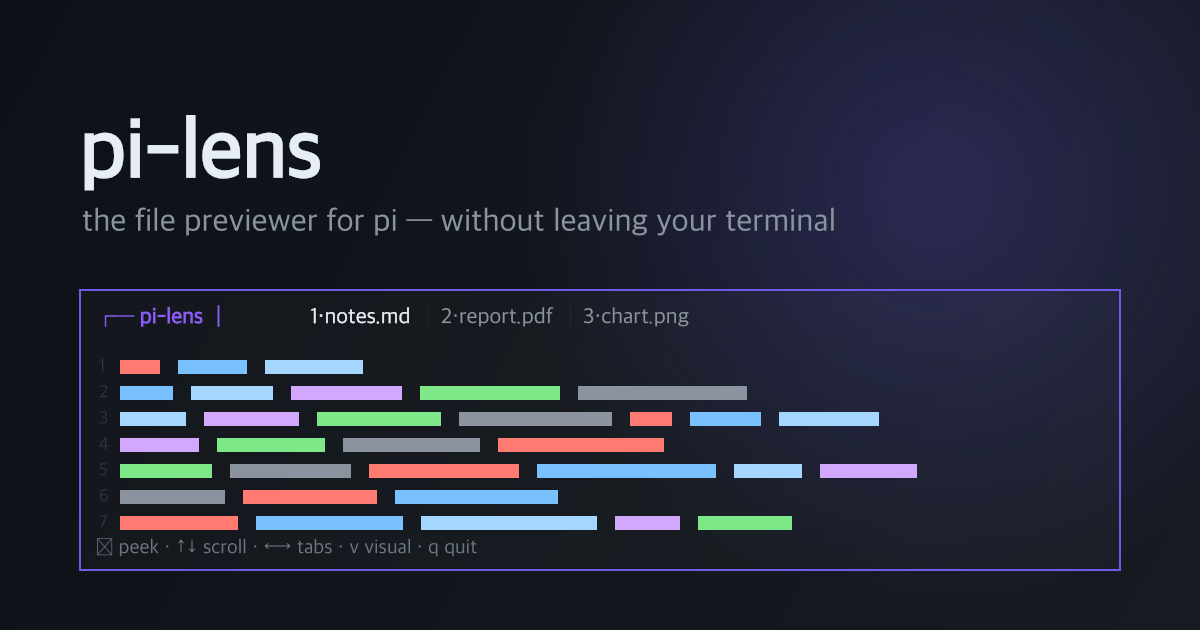
pi-lens adds a tabbed side drawer to pi that previews markdown, source code, PDFs, and images — plus a one-key peek that opens the OS-native previewer (Quick Look on macOS) for pixel-perfect viewing. The drawer stays open while you keep chatting with pi.
Features
- Markdown — headings, tables, and fenced code rendered with pi's own theme
- Code — syntax highlighting + line numbers for
.ts.js.py.html.css.go.rsand dozens more (via pi's highlighter — matches your theme) - PDF · text view — full text extraction via Mozilla pdf.js (handles real-world encodings, CMaps, embedded fonts), with per-page markers
- PDF · visual view (
v) — all pages rendered as one continuous scrollable strip of in-terminal pixels;n/pjump between pages - Images — in-drawer thumbnail (ANSI quadrant blocks, any truecolor terminal)
- Peek (
enter) — the active file opens in the OS previewer: pixel-perfect images and fully rendered PDFs in a floating panel,escto come back - Tabs — open many files, switch with
←/→or1..9 - Three widths — Regular 50% · Focus 70% · Sideshow 30% (
/lens-mode) - Chat-friendly —
ctrl+shift+ltoggles focus between drawer and chat; the drawer stays visible either way - npm-only install —
pdfjs-dist(pure JS) + optional@napi-rs/canvas(prebuilt binaries). No brew/apt. Everything degrades gracefully if absent.
Install
pi install npm:@iamps6/pi-lens        # from npm
# or
pi install git:github.com/iamps6/pi-lens   # from source
Or clone for development:
git clone https://github.com/iamps6/pi-lens
cd pi-lens && npm install
# then symlink into pi's extension dir:
ln -s "$(pwd)" ~/.pi/agent/extensions/pi-lens
Usage
| Command | Description |
|---|---|
/lens | Open the drawer with a welcome screen |
/lens <path> | Preview a file (adds a tab). Absolute, ~, and relative paths all work |
/lens-mode [regular|focus|sideshow] | Drawer width — 50% / 70% / 30% (picker if no arg) |
/lens-close | Close the drawer |
Global shortcut: ctrl+shift+l — focus in/out of the drawer from anywhere.
Keys inside the drawer
| Key | Action | Key | Action |
|---|---|---|---|
↑/↓ j/k | scroll | ←/→ Tab [/] | switch tabs |
space/pgdn pgup | page | 1..9 | jump to tab |
g / G | top / bottom | w | close current tab |
enter / o | peek in OS previewer | q | close drawer |
v | PDF: text ⇄ visual pages | n / p | PDF visual: next/prev page |
ctrl+shift+l | back to chat |
Quick tour
/lens README.md              ← rendered markdown, scroll with ↑↓
/lens src/index.ts           ← highlighted code with line numbers
/lens ~/Documents/report.pdf ← extracted text · press v for pages · enter to peek
/lens ~/Pictures/photo.png   ← thumbnail · enter for pixel-perfect Quick Look
/lens-mode focus             ← widen the drawer to 70%
Supported formats
| Type | Extensions | In-drawer rendering | Peek (enter) |
|---|---|---|---|
| Markdown | .md .markdown .mdx | full markdown renderer | Quick Look |
| Code | .ts .js .py .html .css + many more | syntax highlight + line numbers | Quick Look |
.pdf | pdf.js text extraction · visual page strip (v) | full PDF, scrollable | |
| Image | .png .jpg .jpeg .gif .webp .bmp | quadrant-block thumbnail | pixel-perfect |
| Everything else | any | plain text, soft-wrapped | Quick Look |
How visuals work
Images and PDF pages are converted to pixels and rendered as ANSI
quadrant-block characters (▘▝▞▛ with truecolor fg/bg = 2×2 pixels per cell,
chafa-style). Because that's plain styled text, it works inside the drawer with
scrolling, tabs, and borders in any truecolor terminal. For full detail, enter
opens the file in the OS-native previewer.
Limitations
Why aren't drawer visuals full-detail?
pi itself can show crisp inline images in the chat transcript — so why are pi-lens visuals blocky? Two different rendering worlds:
1. The drawer is made of text. The drawer is a floating overlay that pi's TUI composites by rewriting styled text lines every frame. A text cell shows at most 2 colors; quadrant glyphs squeeze 2×2 "pixels" per cell out of that — the best known encoding. A 70-cell drawer is ~140 px of horizontal resolution. That's the information-density ceiling of character-cell graphics, not an implementation choice.
2. The crisp path is closed to extensions. Raster protocols (iTerm2 OSC 1337, Kitty graphics) draw at the cursor inside a linear, append-only flow — pi's transcript is such a flow, which is why pi's own inline images are sharp. Extension surfaces (overlays, widgets) are composited: lines are partially rewritten at arbitrary positions each frame, and a raster protocol inside a compositor corrupts (we verified this on all three extension surfaces). There is currently no pi extension API for appending rich content to the transcript — the only crisp surface.
Hence the design: drawer = navigate (text is perfect, visuals are
thumbnails) · enter = look (OS previewer, pixel-perfect).
Other limitations
- Scanned/image-only PDFs have no text layer — use visual mode (
v) or peek (OCR is out of scope). - Without optional
@napi-rs/canvas: images show an info card, PDFs are text-only. Withoutpdfjs-dist: PDF falls back to a basic built-in extractor. - The drawer overlays the right side of the transcript (pi has no
split-pane API for extensions).
/lens-mode sideshowminimizes coverage. - Peek uses Quick Look on macOS; Linux/Windows open the default app
(
xdg-open/start).
Roadmap
- Opt-in
/lens-send— push the current visual into the chat as a tool-result image (crisp in-transcript rendering; enters LLM context) - Truecolor capability detection with 256-color fallback
- CSV/TSV table rendering
- Zoom + pan for visual mode
- Upstream pi proposals: split/dock API for the drawer; extension API for rich transcript content
License
MIT © iamps6